SyncSense reads the emails, texts, screenshots and on-screen details you share with it, uses AI to pull out every event, then checks it across all your calendars — Google and Outlook together — so conflicts are caught on every calendar and nothing slips through the cracks.
verified_userRead-only Google & OutlooklockNothing storedcredit_card_offNo card to start
How it works
Three steps to a conflict-free calendar
Bring your schedule in from anywhere, let AI pull out every event, and have it checked across every connected calendar — Google and Outlook — to resolve clashes before they happen.
1
Connect
Sign in with Google or Outlook to give SyncSense read-only access to your calendar. Connect one or both. Nothing is changed or stored.
2
Capture
Paste text, upload screenshots, import SMS exports, share your screen, or send texts and links straight from your phone's share sheet. AI extracts every event automatically.
3
Resolve
Every event is checked against all your calendars at once — Google and Outlook — flagging double-bookings and overlaps across them, suggesting new times, and giving you a clear weekly view of what's ahead.
Everything SyncSense does
One app for every way your plans arrive
Schedules show up as emails, texts, screenshots and on-screen details. SyncSense turns all of them into calendar events you can trust.
radar
AI Scan
Paste any text — emails, messages, notes — and AI extracts the events, then verifies them against your real Google and Outlook calendars.
arrow_forwardUse it when schedule details are buried in text.
calendar_month
Google & Outlook Sync
Connect Google Calendar, Outlook / Microsoft 365, or both. Read-only sync pulls your events from each source — up to 3 months ahead on Pro and 6 months on Platinum — so AI always works against your real schedule, and conflict detection runs across both at once.
arrow_forwardUse it to ground everything in your live calendars.
bolt
Quick Upload
Drop in screenshots or import SMS export files (.xml, .csv, .txt) and AI reads the appointments straight out of them.
arrow_forwardUse it when plans live in images or phone backups.
edit_calendar
Image → Calendar Invite
Snap a sports roster, pay-period calendar, shift sheet or flyer — AI pulls out every event and turns them into calendar invites you add to your own calendar in one tap (.ics or Add to Google Calendar).
arrow_forwardUse it to get a printed or texted schedule onto your calendar.
ios_share
Share from your phone
On Android, share texts or links straight to SyncSense from any app's share sheet. On iPhone & iPad, a one-time Apple Shortcut adds the same Share-to-SyncSense action. Whatever you share lands in AI Scan, ready to analyze.
arrow_forwardUse it to catch plans the moment a message arrives.
videocam
Screen Capture
Share your screen on desktop and AI reads schedule details from the live frames — no copy-paste required.
arrow_forwardUse it when info is on-screen in an app you can't export.
warning
Conflicts & Alerts
Detects double-bookings and overlaps across every source and surfaces them before they become a problem.
arrow_forwardUse it when you're juggling multiple calendars.
auto_awesome
Ask AI
Chat with an assistant that knows your synced schedule and can answer questions about your day or week.
arrow_forwardUse it when you want quick answers about your time.
insights
Weekly Review
An AI calendar review summarizes how your time is spent and highlights patterns and risks for the week ahead.
arrow_forwardUse it when you want a bird's-eye view of your week.
event_repeat
Smart Reschedule
When something clashes, SyncSense suggests open times that fit around the rest of your commitments.
arrow_forwardUse it when something has to move.
sports_score
Favorite Sports Teams
Follow your favorite teams and their upcoming games drop onto your timeline as a calendar source — checked for clashes against your real plans, just like any other event. Pro & Platinum.
arrow_forwardUse it so game nights never collide with your schedule.
Pricing
Start free, upgrade when you need more
Every plan includes Google & Outlook calendar sync and conflict detection. Higher tiers add more AI scans, vision, chat, accounts and favorite sports teams.
Google and Outlook access is strictly read-only through OAuth, and your calendars are never stored on our servers. Content you scan is sent to the AI for analysis and discarded right after. By continuing you agree to our .
Ready to take control of your schedule?
Agree to our terms and start syncing your calendar in seconds — free, no card required.
Sign in with Google or Outlook to pull your real calendar — connect one or both. Claude checks it against messages you paste, upload, or share to catch scheduling conflicts.
check_circleRead your Google or Outlook calendar (past 14 days and next 14 days)
blockNever writes, deletes, or stores data
or
OAuth 2.0 · Read-only · Token in-session only
Connected Accounts
—
account_circle—
Live
calendar_month
Outlook Calendar
—
Live
Upcoming Events
Loading…
Loading…
Calendar — Past & Next 14 Days
Loading…
Live
Loading your events…
Google Account
Not connected
Connect to pull your live Google Calendar.
Google Accounts
Connected
Outlook / Microsoft 365
Not connected
Connect to pull your live Outlook calendar (read-only). Events stay in your browser.
Outlook / Microsoft 365
Connected
calendar_month
Outlook Calendar
—
Sports Teams
Follow your favorite teams and pull their upcoming games onto your timeline — games are checked for conflicts against your calendars.
Permissions
calendar_month
calendar.readonly
List upcoming events from primary calendar
Active
calendar_month
Calendars.Read (Outlook)
Read-only Microsoft 365 calendar events
Active
person
userinfo.profile + email
Display name, email, and avatar
Active
Calendar — Live
calendar_month
Not connected
Sign in to see real events
Paste Message or Email
AI extracts events, times & conflicts
mail
Email
Paste example
sms
SMS
Text message
calendar_month
Outlook
Calendar invite
Scan History
history
No scans yet
Run your first AI scan above
AI Analysis
Events, conflicts & recommendations
claude-sonnet-4-5
auto_awesome
Ready to analyze
Paste a message or load an example above
Actions
Share to SyncSense
Send texts, links & screenshots from your phone straight into AI Scan
Set this up once, then share a message, email, or screenshot from any app on your phone — SyncSense pulls out the events and checks them against your calendar. Pick your phone below.
ios_shareShare to SyncSense from your iPhone
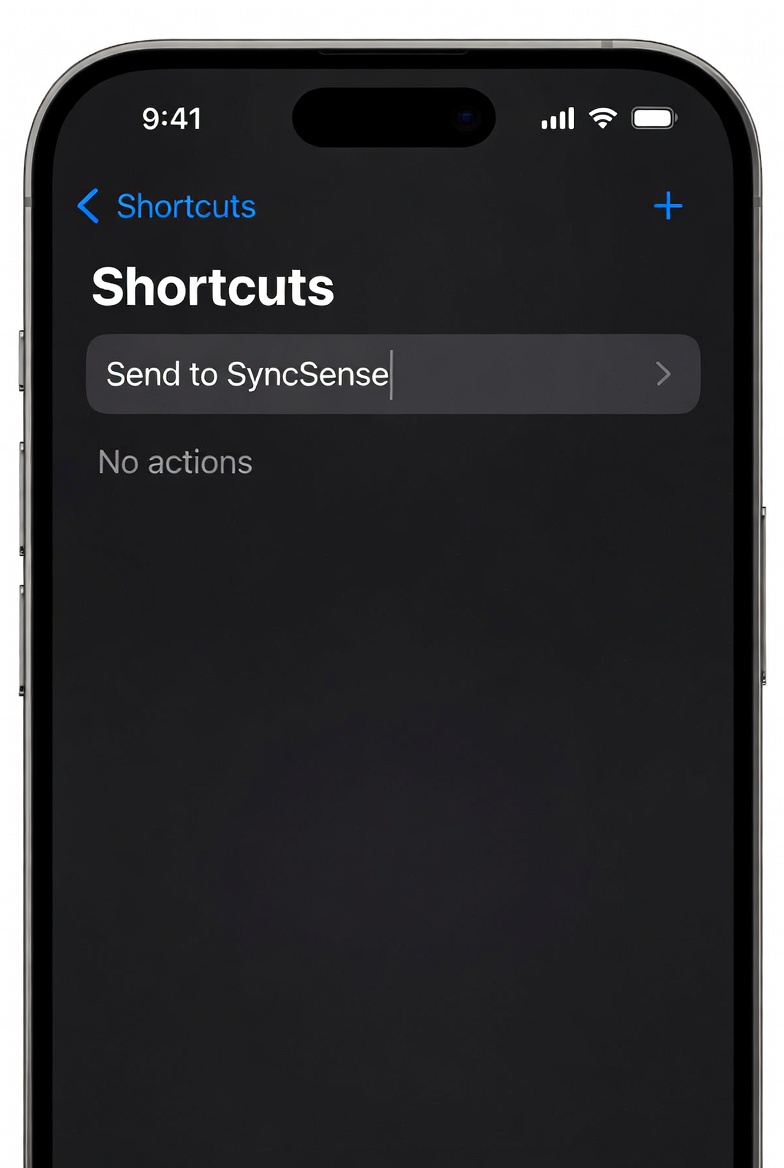
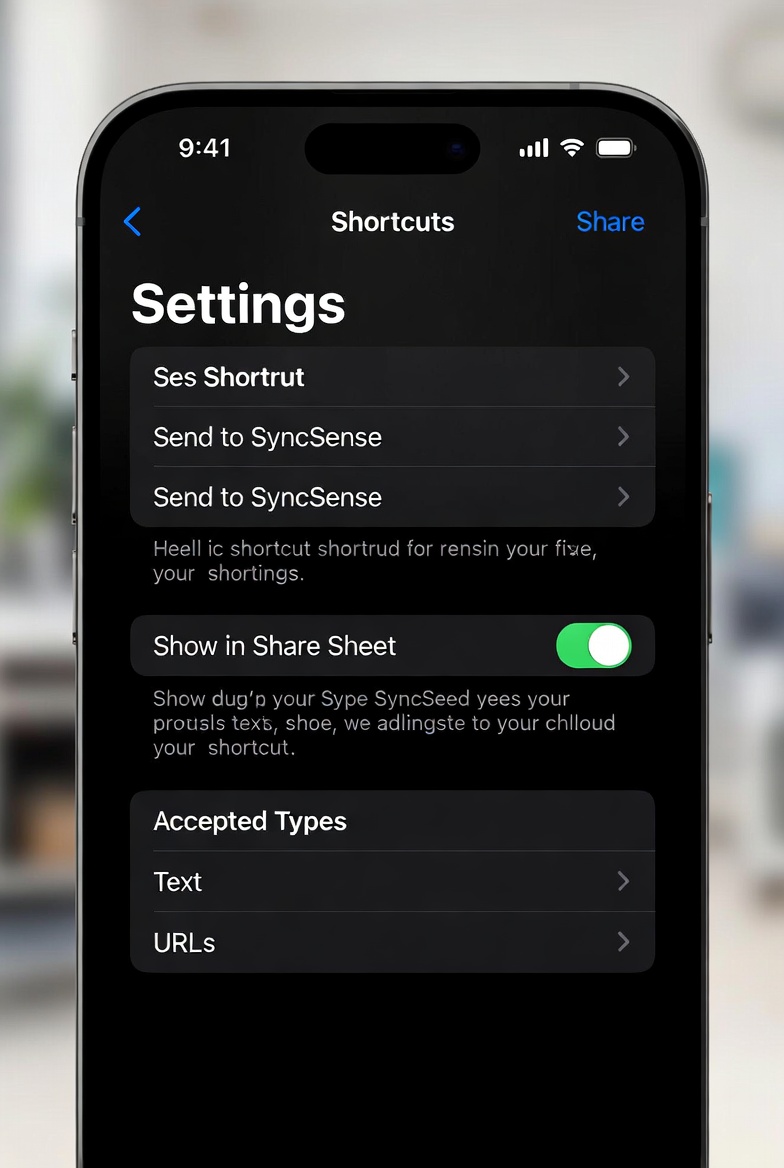
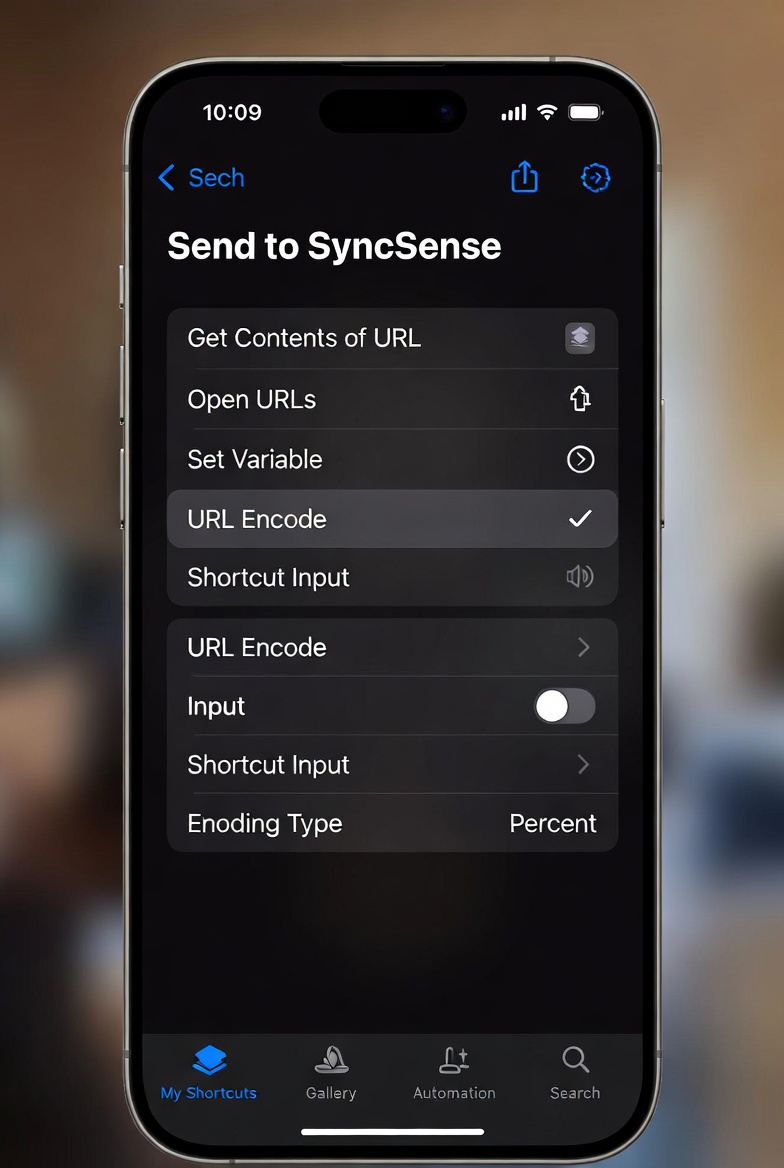
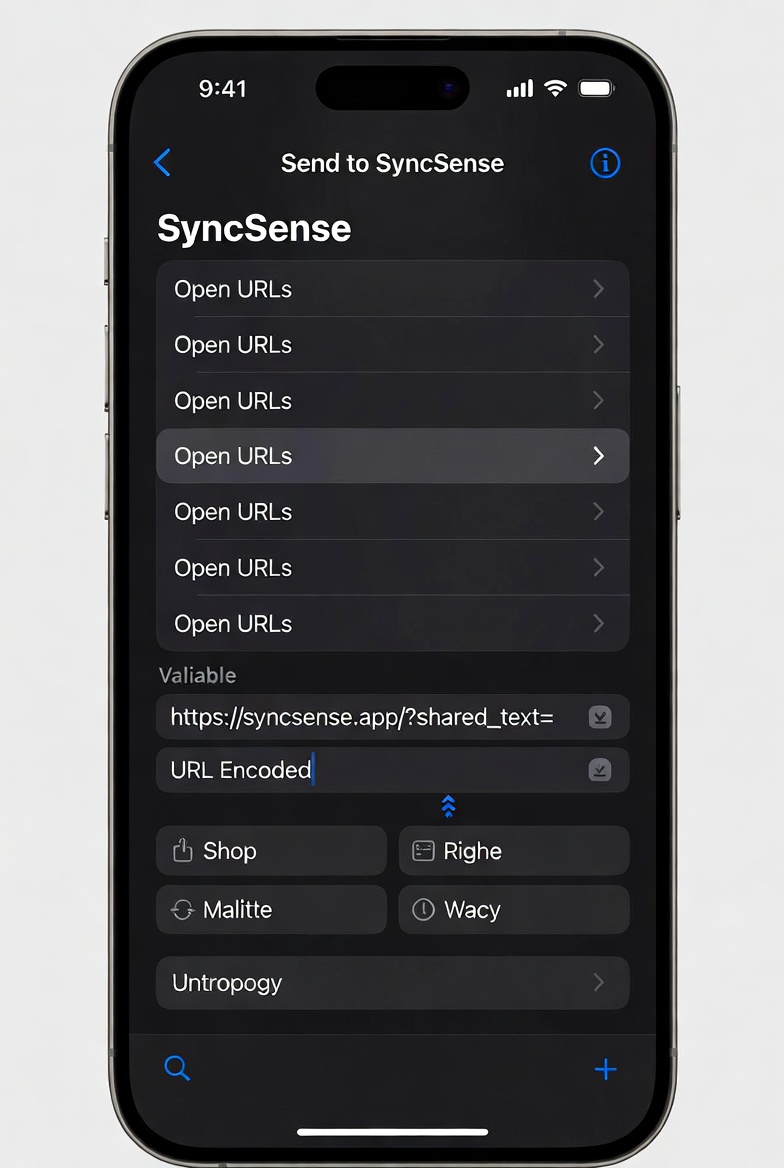
iPhones can't add web apps to the Share sheet directly, but a one-time Apple Shortcut fixes that — then you can share any text or link straight into AI Scan. It takes about a minute to build; just follow the steps below.
Apple only lets you add shortcuts you build yourself or get from a verified iCloud link — downloaded shortcut files are blocked, so we walk you through it instead.
1Create the shortcut
Open the Shortcuts app → tap + to create a new shortcut. Name it “Send to SyncSense”.
2Show it in the Share sheet
Open its settings (the ⓘ / toggle) → turn on Show in Share Sheet, and set the accepted types to Text and URLs.
3Add a URL Encode action
Add the action URL Encode, with its input set to Shortcut Input.
4Add an Open URLs action
Add the action Open URLs. In the URL field, paste the base below, then insert the URL Encoded variable right after the =.
…
Then in any app: share text or a link → choose Send to SyncSense → it opens here ready to analyze. (Sharing images this way isn't supported on iOS — use Quick Upload for screenshots.)
androidShare to SyncSense from your Android phone
No shortcut needed on Android — once you add SyncSense to your home screen, it shows up right in the system share sheet, so you can send texts, links, and even screenshots straight into the app.
install_mobileOne-time setup
Open SyncSense in Chrome on your Android phone.
Tap the ⋮ menu → Install app (or Add to Home screen).
Confirm — SyncSense now lives on your home screen and joins the share sheet.
Then in any app — Messages, Gmail, Chrome, Photos — tap Share → choose SyncSense. Shared text and links land in AI Scan; shared screenshots land in Quick Upload, ready to analyze.
If SyncSense doesn't appear in the share sheet yet, reopen the installed app once, then try sharing again.
Quick Upload
Paste texts or drop screenshots of calendars or text messages — Claude extracts scheduling info instantly
Paste Text Messages
Copy from phone and paste here
Ctrl+V
Import a Texts File
Upload an exported texts backup — we read it for you
Your file is read on this device only and never uploaded to our servers.
Upload Screenshots
Calendar or text-message pics — drop or paste (Ctrl+V)
0 images
add_photo_alternate
Drop calendar or text-message screenshots here
or click to browse · or Ctrl+V to paste
PNG, JPG, WEBP · multiple files OK
tips_and_updates
Fastest: Screenshot on phone → AirDrop/cable to Mac → Ctrl+V here
AI Analysis
Events & conflicts extracted by Claude
claude-sonnet-4-5
bolt
Instant analysis
Paste text or drop a screenshot — Claude reads it in seconds
Actions
Tips
smartphoneiPhone: Enable iMessage on Mac → right-click message → Copy → paste here
androidAndroid: Long-press message → Copy, or Share → Gmail → copy body
ios_shareShare to SyncSense: Send texts, links & screenshots straight from your phone — setup steps for iPhone and Android are on the Share to SyncSense tab.
privacy_tipPrivacy: Images go directly to Anthropic's API and are never stored
Image → Calendar Invite Pro
Upload a picture of any schedule — sports rosters, pay calendars, shift sheets, flyers — and AI turns it into calendar invites you add to your own calendar
Upload Schedule Images
Calendar pics, rosters or pay schedules — drop, browse or paste (Ctrl+V)
0 images
add_photo_alternate
Drop a photo or screenshot of a schedule
or click to browse · or Ctrl+V to paste
PNG, JPG, WEBP · multiple files OK
How it works
photo_camera1. Upload a picture of the schedule you want on your calendar.
auto_awesome2. AI extracts every event — review and tweak the details.
edit_calendar3. Add to your calendar via a downloadable .ics invite or an Add-to-Google-Calendar link.
privacy_tipPrivacy: images go straight to Anthropic's API and are never stored.
Extracted Events
Review, tweak, then add to your calendar
claude-sonnet-4-5
edit_calendar
No events yet
Upload a schedule image and AI will pull out the events
Add to your calendar
Screen Capture
Share your screen · scroll through texts · AI extracts scheduling info
Ready
screen_share
1. Share Screen
Click Start below
chat
2. Open Texts
Go to Messages app
swipe_vertical
3. Scroll Slowly
AI captures every 2s
auto_awesome
4. AI Analyzes
Click Stop when done
Live Screen Share
Click Start to begin
0:00
videocam
Screen preview appears here
Choose a window, then navigate to your texts
Keep THIS browser tab visible on screen
Use a second monitor or snap windows side-by-side. Scroll slowly through your messages then click Stop & Analyze.
timer
Capture every
Upload Screenshots
Screen recording isn't available on phones — upload screenshots instead
How to capture your texts
1. Open your Messages or Calendar app. 2. Take a screenshot (iPhone: Side + Volume Up · Android: Power + Volume Down). 3. Come back here and add the screenshots below.
add_photo_alternate
Tap to add screenshots
You can select more than one
Captured Frames
0 frames
AI Analysis
Claude reads screen frames and extracts scheduling info
claude-sonnet-4-5
auto_awesome
Ready to analyze
Share your screen and scroll through your texts. Claude reads every frame.
Actions
Tips for best results
✓Use Chrome or Edge on desktop (HTTPS required)
✓Share a specific window, not your whole screen
✓Keep the shared window visible — don't minimize it
✓Scroll slowly so each message is visible for 2+ seconds
Quick Grab
Share your screen · we snap each screen as you scroll · crop the part AI reads
Ready
screen_share
1. Share Screen
Click Start below
chat
2. Scroll Texts
We snap automatically
crop
3. Crop a Screen
Drag a box on a still
auto_awesome
4. AI Analyzes
Grab then Analyze
Live Screen Share
Click Start to begin
screen_share
Screen preview appears here
Share a window — we snap your screen automatically as you scroll
photo_camera0 screens
Now open your messages and scroll
SyncSense is snapping your screen automatically — no need to switch back or click anything. When you've scrolled through your texts, return here and click Stop Sharing to crop them.
Drag a box on the screen above
Keep just the part you want read — each box becomes one grab. Use Whole screen to add it all, or pick another snapshot below.
Captured Screens
0 screens
Upload Screenshots
Drag-select isn't available on phones — crop & upload screenshots instead
How to capture just what matters
1. Screenshot your texts or calendar. 2. Crop to the part you want read (your phone's photo editor can do this). 3. Add the cropped images below.
add_photo_alternate
Tap to add images
You can select more than one
Grabbed Regions
0 regions
AI Analysis
Claude reads your grabbed regions and extracts scheduling info
claude-sonnet-4-5
crop
Ready to analyze
Share your screen, scroll your texts, then crop a snapshot.
Actions
Tips for best results
✓Use Chrome or Edge on desktop (HTTPS required)
✓Share a specific window, not your whole screen
✓Drag tightly around just the messages you care about
✓Add a few grabs to cover a longer conversation
✓We snap each screen automatically — just scroll your messages
Conflicts & Alerts
AI-detected discrepancies needing review
check_circle
No conflicts detected
SyncSense AI is monitoring your schedule. Conflicts appear here as discrepancies are found across your calendar and scanned messages.
AI Explanation
Dismissed double-bookings
Kept hidden across re-syncs · restore to bring one back
0
Calendar Sync
Live events from Google & Outlook · AI-verified
calendar_month
Connect a calendar to get started
Your real Google or Outlook events will appear here once you connect
Calendar — Past & Next 14 Days
Loading…
Live
Loading your events…
Source Legend
eventGoogle CalLive from Google Calendar API
calendar_monthOutlookLive from Microsoft Graph API
sports_scoreSportsFavorite teams’ games (Pro/Platinum)
SyncedVerified across sources
ConflictDiscrepancy detected
Sync Health
Google Calendar—
Outlook CalendarNot connected
Ask SyncSense AI
Claude with real Google Calendar context
claude-sonnet-4-5
auto_awesome
Hello! Connect your Google account and I'll have full context of your real Google Calendar. Ask me anything about your schedule.
Suggested Questions
AI Context
Connect Google to give AI real schedule context.
AI Calendar Review
Your week, analyzed by AI · Pro feature
calendar_month
Connect Google to review your week
SyncSense needs your real Google Calendar to analyze how your week went.
insights
Ready for your weekly review
Click “Run Weekly Review” to see your work vs personal balance, busiest times, and the best windows to schedule meetings.
Yes — upgrade or downgrade anytime. Upgrades take effect immediately. Downgrades apply at the next billing cycle.
What counts as an AI scan?
Any use of AI Scan, Quick Upload, Screen Capture, or Quick Grab analyze functions counts as one scan toward your monthly total — including image, Screen Capture & Quick Grab scans (no separate limit on Pro & Platinum). Image scanning is text-only on Free. Ask AI chat does not count.
Is my data private?
Your Google data is read-only via OAuth and never stored. Scanned content is sent to Anthropic's API and discarded after analysis.
How do scan limits reset?
Free includes 10 AI scans per month, Pro includes 100, and Platinum includes 300. All limits reset on the 1st of each month.
Profile
JD
Not signed in
Connect Google account
Pro Plan
AI Preferences
auto_fix_high
Auto-resolve minor conflicts
Time shifts under ±15 minutes
psychology
Pattern learning
Detect atypical scheduling from history
Calendar
date_range
Calendar look-ahead
How far ahead to pull events
AI Engine
Powered by Claude · Included for all users
Active
auto_awesome
Claude Sonnet — included for all users
AI Scan · Quick Upload · Screen Capture · Quick Grab · Ask AI